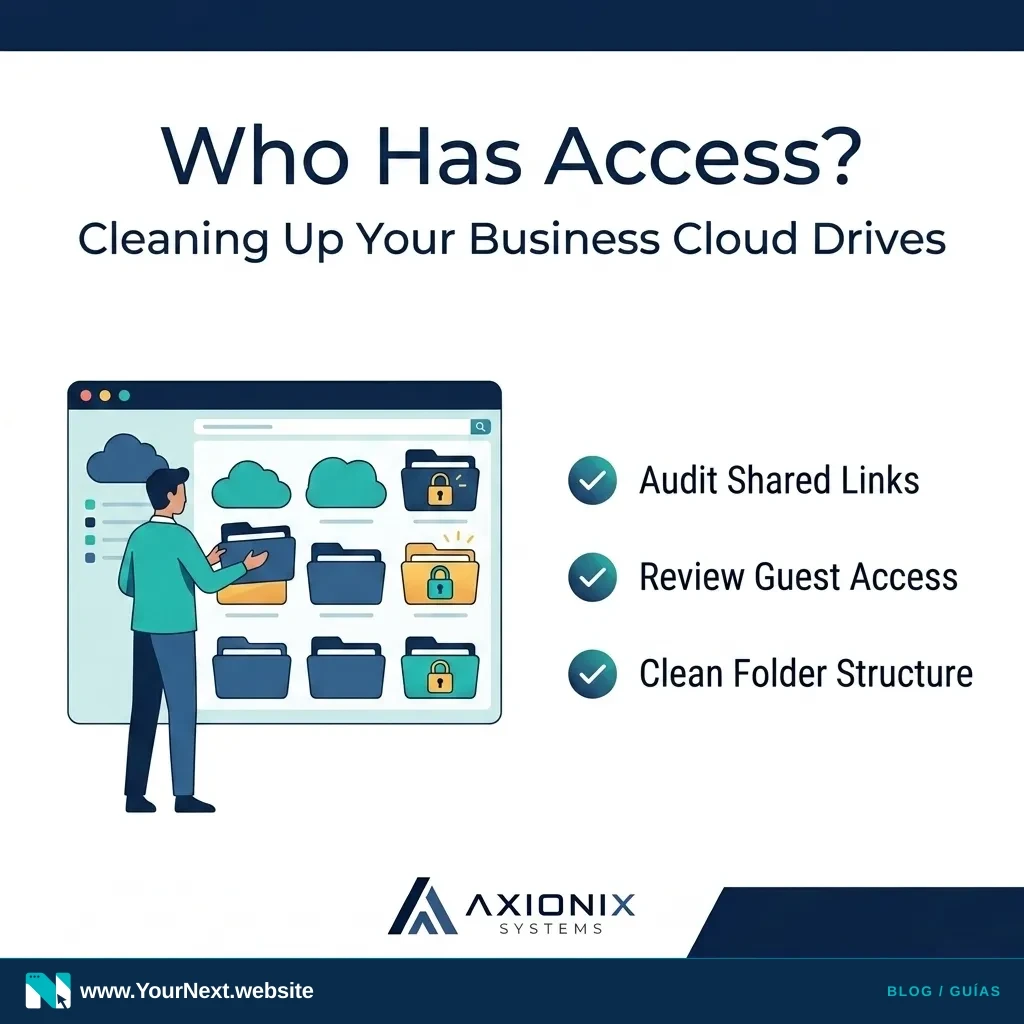
In the early days of a business, sharing files is all about speed. You create a folder in Google Drive, OneDrive, or Dropbox, and you share it with everyone who needs to help. It’s efficient and it works. But as your business grows, those shared folders often become a "digital junk drawer" with security holes you can’t see.
Most small business owners don't realize that a file shared three years ago with a former contractor or a generic "anyone with the link" setting is still accessible today. This isn't just a technical annoyance; it’s an operational risk. If sensitive client data, payroll info, or strategic plans are sitting in folders with loose permissions, your business is one clicked link away from a data leak.
The Invisible Risk of "Anyone with the Link"
The most common security gap we see at Axionix is the use of public sharing links. When you set a folder to be accessible by "anyone with the link," you are essentially removing the lock from the door. Anyone who happens to get that URL—even if it was forwarded through multiple emails or shared in a Slack channel years ago—can see your files without ever logging in.
Worse yet, if that link allows "Editor" access, an anonymous person could potentially delete your files or upload malicious content into your company drive. For a small team, the easiest way to prevent this is to stop using public links entirely and instead share files only with specific email addresses.
The Folder vs. File Trap
Another common issue is "permission creep." This happens when you give someone access to a top-level folder, and they automatically get access to every sub-folder and file inside it. If you have a "Marketing" folder and you invite a guest blogger to see one draft, but you invited them at the folder level, they might be able to see your entire marketing strategy, budget, and contact lists.
To keep things clean, we recommend a "Need to Know" approach. Only grant the minimum level of access required for the job. Does the accountant need to edit your project templates? Probably not; "Viewer" access is enough. Does the social media intern need access to the "Legal" folder? Definitely not.
- Audit your "Anyone with the link" files: Search your drive for shared links and change them to "Restricted" or "Specific People."
- Review external collaborators: Remove access for former employees, old vendors, or contractors you haven't spoken to in 6 months.
- Standardize folder structures: Create a clear separation between "Internal Only" and "Shared with Guests" folders.
- Check "Owner" status: Ensure the business owner or a central company account owns all critical folders, not a temporary staff member's personal account.
- Set a quarterly reminder: Put a 15-minute "Drive Cleanup" task on your calendar every three months.
Digital organization isn't just about tidiness; it's about protecting the business you've built. By taking a few minutes to review who has the keys to your digital office, you reduce the chance of a costly mistake down the road.
Not sure where to start with your cloud security? Axionix can perform a systems audit to find hidden risks in your shared drives and help your team build better digital habits. Contact us for a systems review.